Hello, this is SM Instruments.
First of all, I'd like to thank everyone who bought the BATCAM 2S Ultrasonic Camera.
Here are the changes and update instructions for the latest firmware upgrade to version 3.0.8.
(Update Release: September 16, 2026)
<3.0.8 Changes due to Firmware Update>
New Features
- Added Leak AI function
- Added a function to organize recorded files into folders by date
- Added a function to check the number of files in each folder in the Gallery
Improvements
- Changed the currency display format from USD, KRW, etc. to symbols such as $ and ₩
- Resolved discrepancies between measurement data and report data, and fixed minor bugs
<Preparations>
- Download software (approximately 330MB)
- Update time is about 10 to 15 minutes
<How to Update the Firmware>
Please make sure to read the firmware update instructions carefully before proceeding with the firmware update.
1. Click one of the buttons below to download the file from the drive that suits your usage environment.
(Both buttons provide the same file.)
< Download - NAS> < Download - Google Drive >


2. Download the folder named BATCAMV2S_UPDATE, as shown in the image below.
After downloading the file, turn on the BATCAM 2S and use the USB cable provided with the product to connect the product to the PC.
Copy the downloaded firmware file to the BATCAMV2S_UPDATE folder.
(My PC > SMI-BATCAMv2S > BATCAMV2S_UPDATE)
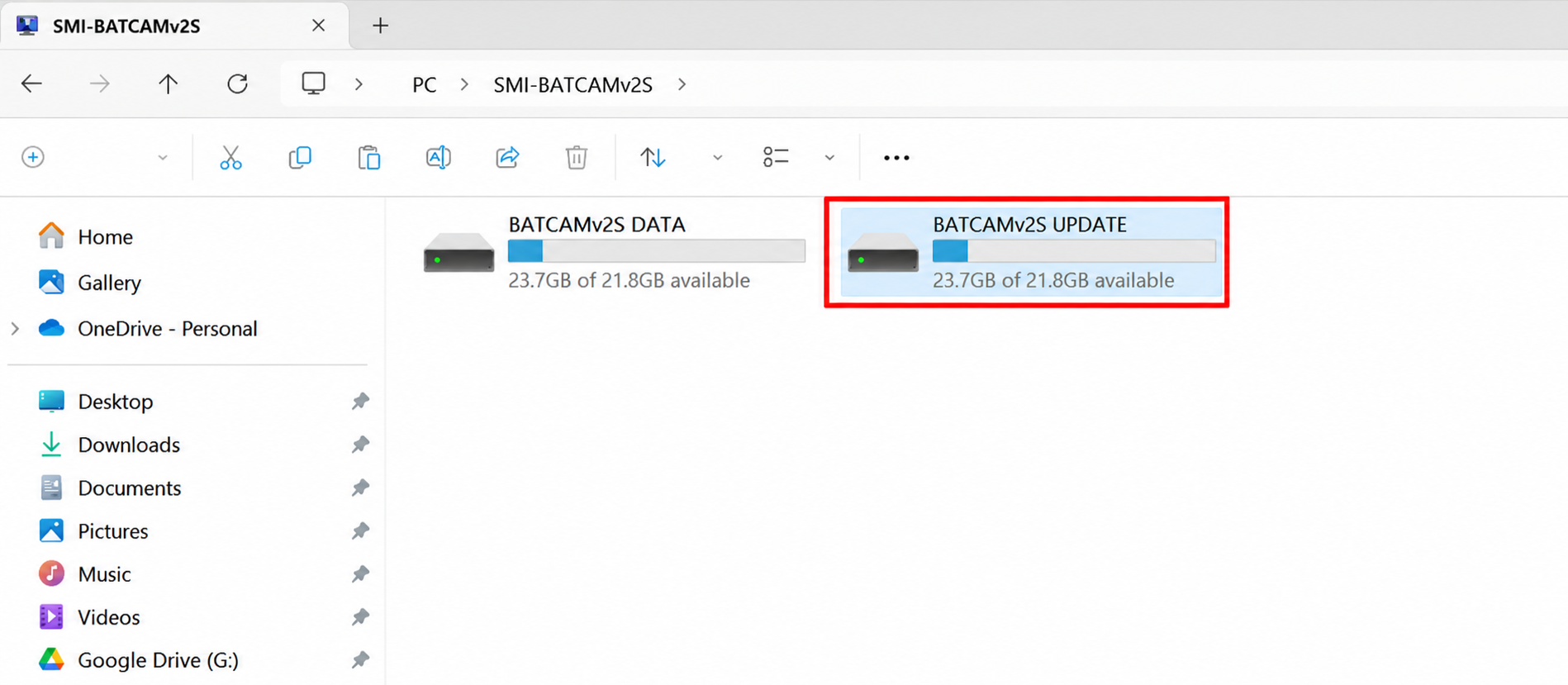
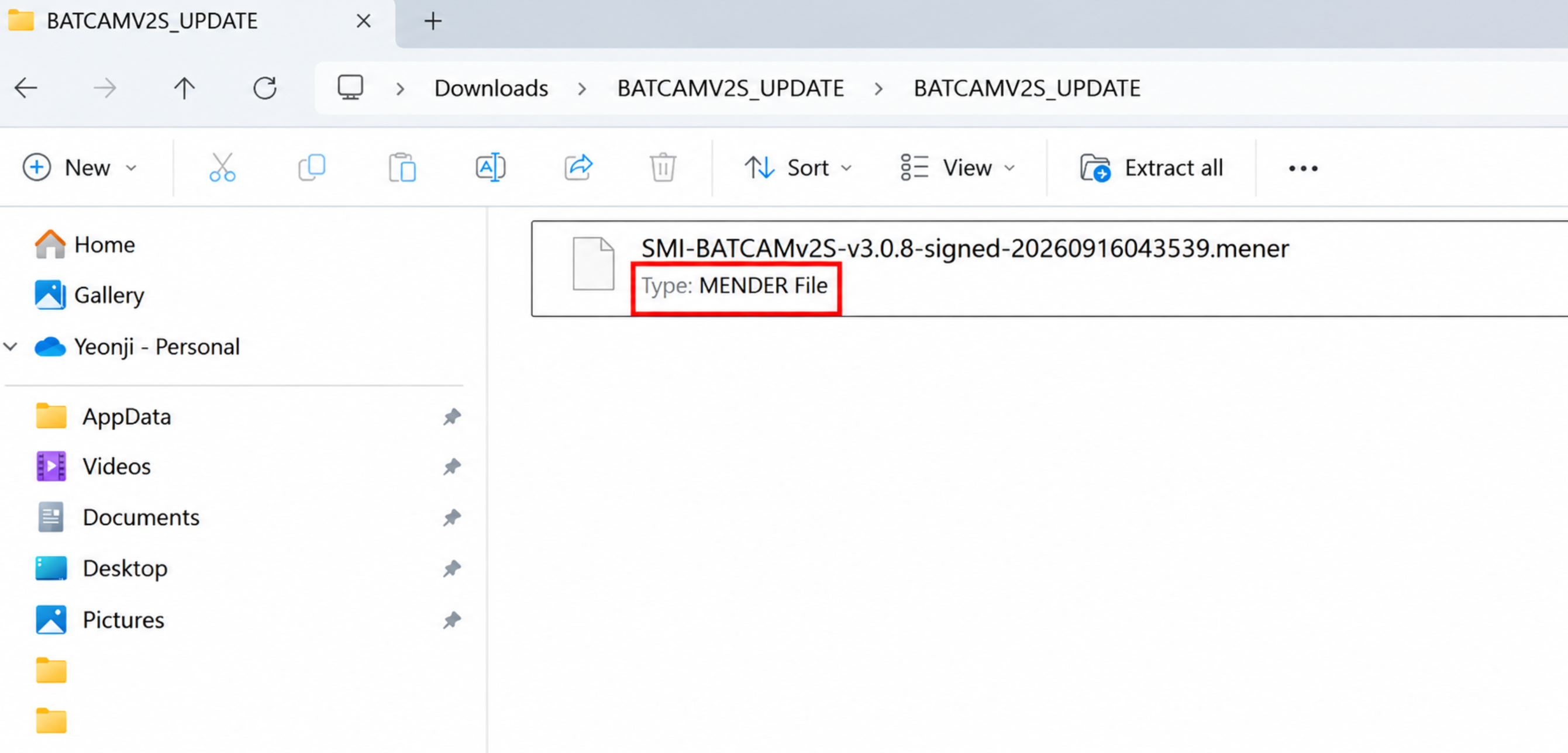
The update file must have the .mender file extension.
3. Once the firmware file has been copied, disconnect the USB cable from the PC.
4. After disconnecting from the PC, the firmware update will start within the product. If the added firmware version is the same or lower than the version installed on the product, the firmware update will not proceed even if it has been disconnected.
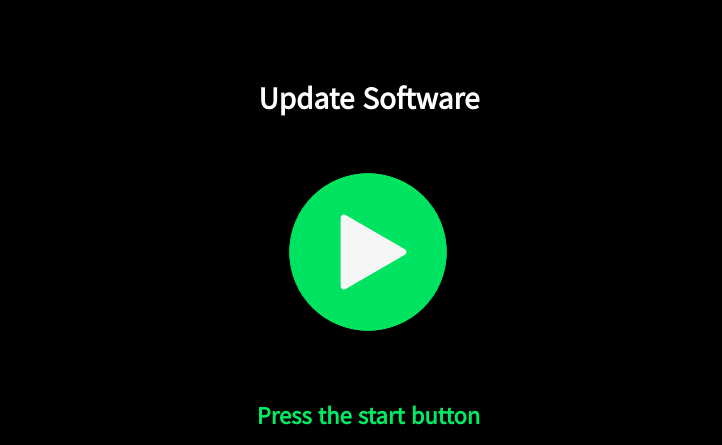
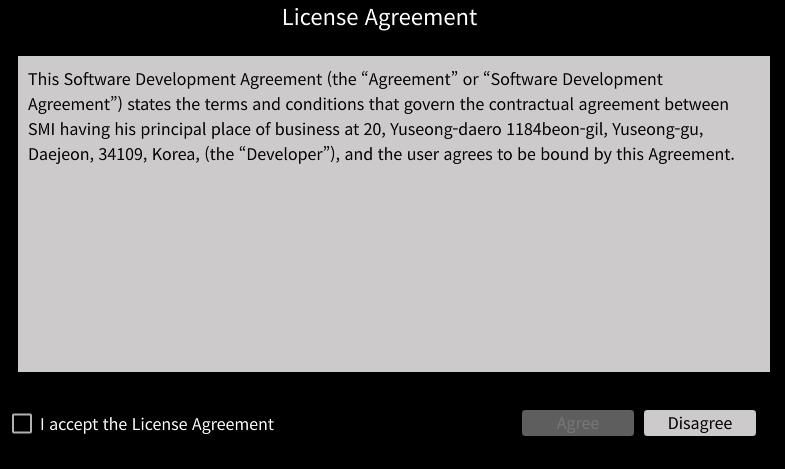
5. When starting the firmware update, a license agreement screen will appear. If you do not agree to the license, you can exit the update process.
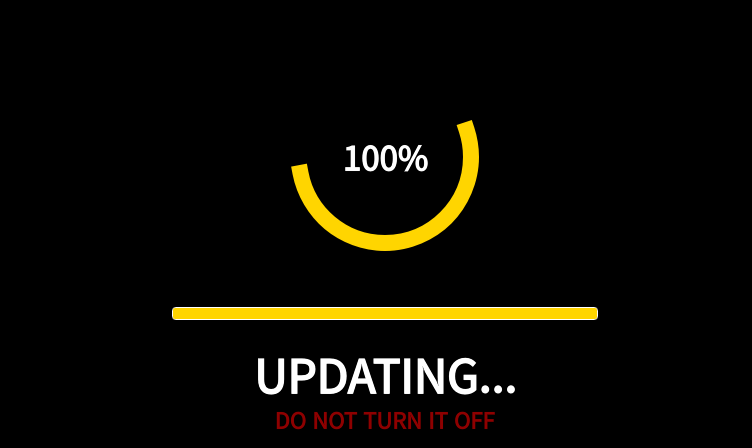
6. Here is the screen of the BATCAM 2S during the update process.
Note - even if the firmware update progress reaches 100%, the update may still be ongoing. Please re-frain from any actions until a message confirms that the firmware update is fully completed.
7.Once the update completes successfully, restart the product before use.
- Please download the file from the drive that suits each usage environment. (Both buttons are the same file)
- All rights reserved by SM Instruments Inc.



Hello, this is SM Instruments.
First of all, I'd like to thank everyone who bought the BATCAM 2S Ultrasonic Camera.
Here are the changes and update instructions for the latest firmware upgrade to version 3.0.8.
(Update Release: September 16, 2026)
<3.0.8 Changes due to Firmware Update>
New Features
Improvements
<Preparations>
<How to Update the Firmware>
Please make sure to read the firmware update instructions carefully before proceeding with the firmware update.
1. Click one of the buttons below to download the file from the drive that suits your usage environment.
(Both buttons provide the same file.)
< Download - NAS> < Download - Google Drive >


2. Download the folder named BATCAMV2S_UPDATE, as shown in the image below.
After downloading the file, turn on the BATCAM 2S and use the USB cable provided with the product to connect the product to the PC.
Copy the downloaded firmware file to the BATCAMV2S_UPDATE folder.
(My PC > SMI-BATCAMv2S > BATCAMV2S_UPDATE)
The update file must have the .mender file extension.
3. Once the firmware file has been copied, disconnect the USB cable from the PC.
4. After disconnecting from the PC, the firmware update will start within the product. If the added firmware version is the same or lower than the version installed on the product, the firmware update will not proceed even if it has been disconnected.
5. When starting the firmware update, a license agreement screen will appear. If you do not agree to the license, you can exit the update process.
6. Here is the screen of the BATCAM 2S during the update process.
Note - even if the firmware update progress reaches 100%, the update may still be ongoing. Please re-frain from any actions until a message confirms that the firmware update is fully completed.
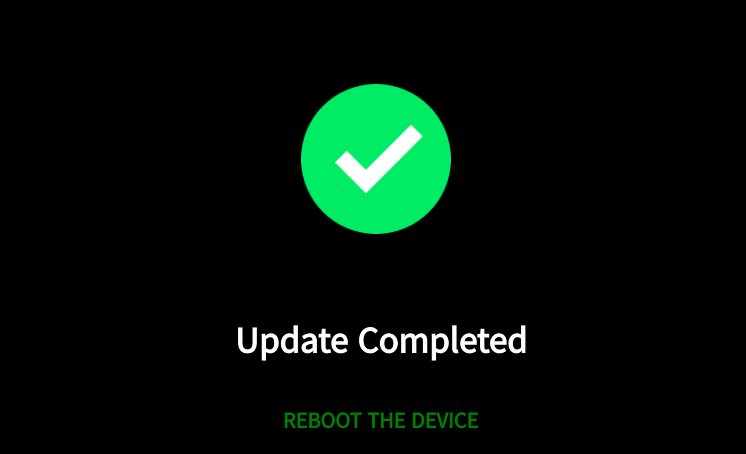
7.Once the update completes successfully, restart the product before use.