Hello, this is SM Instruments.
First of all, we would like to sincerely thank all of you for purchasing our BATCAM FX and BATCAM eFX Fixed Ultrasonic Cameras.
We are pleased to announce the release of the latest FX Viewer version 1.1.1, along with details of the changes and update instructions.
(Updated on September 29, 2026)
Viewer Update v1.1.1 – Changes
<New Features>
• Added support for the BATCAM FX2 model
• Added support for changing the BATCAM FX2 camera resolution
• Added an automatic software update feature for new versions
• Added a feature to import recorded files from other BATCAM FX cameras
• Added a feature description for "Camera Overlay" under Camera Settings
• Added scrolling functionality to the camera list on the Viewer and Analysis screens
<Improvements>
• Improved the camera IP change function with automatic tracking of devices after an IP address change
(BATCAM FX1 v1.0.5 or earlier requires a reboot)
• Limited camera names to 40 characters
(Existing names exceeding the limit will be automatically changed upon first launch, with a notification)
• Added automatic reconnection when either of the camera data streams (RTSP or WebSocket) is disconnected
• Fixed minor bugs
<Minimum System Requirements for Running FX Viewer>
OS: Windows 10 (64-bit)
CPU: Intel 9th Gen i7
RAM: 8GB or higher
Storage: SSD or HDD 500GB or higher
<How to Update FX Viewer>
⚠️ Please make sure to read the update instructions carefully before proceeding.
1. ↓ Click the button below to download the file.
< Download - NAS >

< Download - Google Drive >

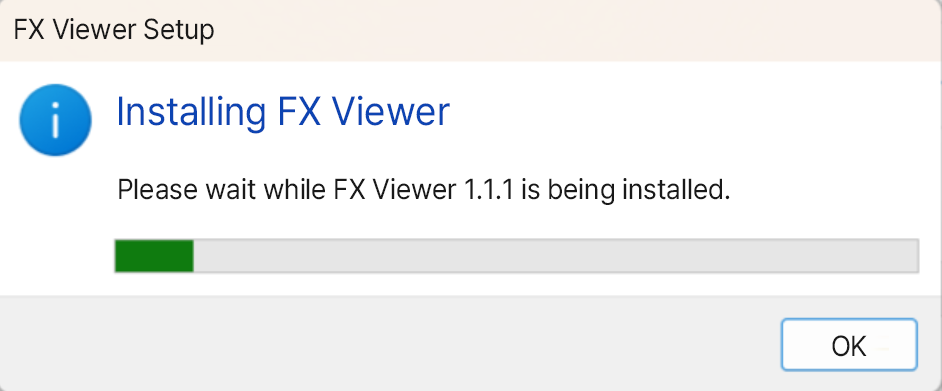
2. Download the appropriate FX Viewer installer for your system (ARM64 or x64) and run the installation file.

Upon completion of the installation, the installer will automatically close without any further notification.
3. Account initialization
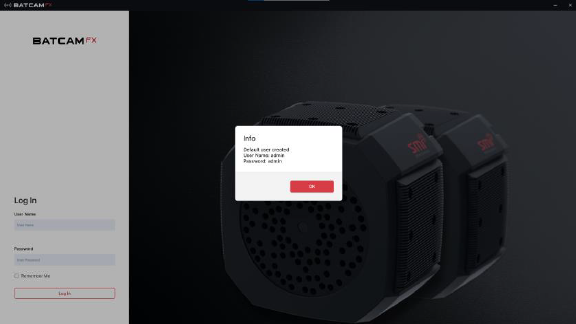
This is the screen when you first access FX Viewer. The initial User ID and Password are admin / admin.
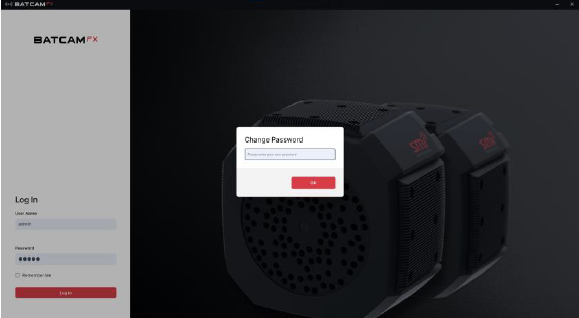
4. After entering admin for ID and Password, you will be prompted to change the password as shown in the image. After changing the password and entering the changed password, you will be logged in.
5. Additionally, if you check the "Remember Me" box under Password when logging in, you will remain logged in and the FX Viewer program will remember your account information and skip the login process the next time you run
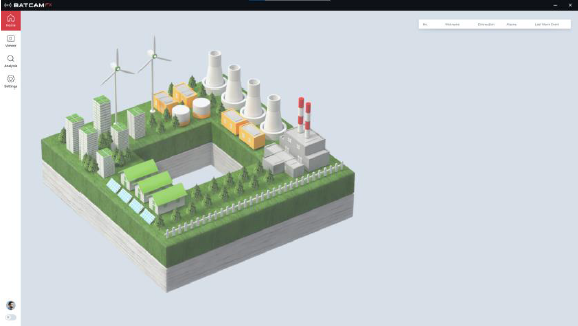
6. The initial screen after a successful login (Home mode).
- By clicking the "Download Link" button, you can view and download the materials.
- All copyrights and rights to these materials are reserved by SM Instruments Inc.
- For further inquiries, please contact us at sales@smins.co.kr



Hello, this is SM Instruments.
First of all, we would like to sincerely thank all of you for purchasing our BATCAM FX and BATCAM eFX Fixed Ultrasonic Cameras.
We are pleased to announce the release of the latest FX Viewer version 1.1.1, along with details of the changes and update instructions.
(Updated on September 29, 2026)
<New Features>
• Added support for the BATCAM FX2 model• Added support for changing the BATCAM FX2 camera resolution
• Added an automatic software update feature for new versions
• Added a feature to import recorded files from other BATCAM FX cameras
• Added a feature description for "Camera Overlay" under Camera Settings
• Added scrolling functionality to the camera list on the Viewer and Analysis screens
<Improvements>
• Improved the camera IP change function with automatic tracking of devices after an IP address change
(BATCAM FX1 v1.0.5 or earlier requires a reboot)
• Limited camera names to 40 characters
(Existing names exceeding the limit will be automatically changed upon first launch, with a notification)
• Added automatic reconnection when either of the camera data streams (RTSP or WebSocket) is disconnected
• Fixed minor bugs
<Minimum System Requirements for Running FX Viewer>
OS: Windows 10 (64-bit)
CPU: Intel 9th Gen i7
RAM: 8GB or higher
Storage: SSD or HDD 500GB or higher
<How to Update FX Viewer>
⚠️ Please make sure to read the update instructions carefully before proceeding.
1. ↓ Click the button below to download the file.
< Download - NAS >

< Download - Google Drive >
2. Download the appropriate FX Viewer installer for your system (ARM64 or x64) and run the installation file.
Upon completion of the installation, the installer will automatically close without any further notification.
3. Account initialization
This is the screen when you first access FX Viewer. The initial User ID and Password are admin / admin.
4. After entering admin for ID and Password, you will be prompted to change the password as shown in the image. After changing the password and entering the changed password, you will be logged in.
5. Additionally, if you check the "Remember Me" box under Password when logging in, you will remain logged in and the FX Viewer program will remember your account information and skip the login process the next time you run
6. The initial screen after a successful login (Home mode).