Hello, this is SM Instruments.
First of all, we would like to sincerely thank all of you for purchasing the BATCAM FX Fixed Ultrasonic Camera.
We are pleased to announce the release of FX Viewer version 1.0.11.0 (updated on January 19, 2026), along with details of the changes and update instructions.
Viewer Update v1.0.11.0 – Changes
<New Features>
- Replaced multi-source markers with peak markers and added a peak marker overlay feature
- Enhanced interpolator frame stretch alignment and improved resize handling
<Improvements>
- Improved IP change and reconnection process (including reconnection flow and manual IP input)
- Fixed an issue where maximum value calculation and propagation were missing when using ROI in single/multi-source modes
- Added maximum dB metadata display per ROI and changed dB display to a monospaced font
- Automatically set LPoint at the center of the ROI box when configuring ROI (fixed order: ROI0 → LPoint0)
- Fixed an issue where Range/Threshold values were not calculated per ROI
- Improved device IP change menu, added reboot guidance, and provided a network shortcut
- Fixed OpenCvHelper build errors and improved pipe response performance
< Minimum System Requirements for Running FX Viewer >
- OS: Windows 10 (64-bit)
- CPU: Intel 9th Gen i7
- RAM: 8GB or higher
- Storage: SSD or HDD 500GB or higher Software
- Download: ~800MB
< How to Update FX Viewer >
⚠️ Please make sure to read the update instructions carefully before proceeding.
1. ↓ Click the button below to download the file.
< Download - NAS >

< Download - Google Drive >

2. Download the FX Viewer installation file from the webpage, unzip it, and run it.
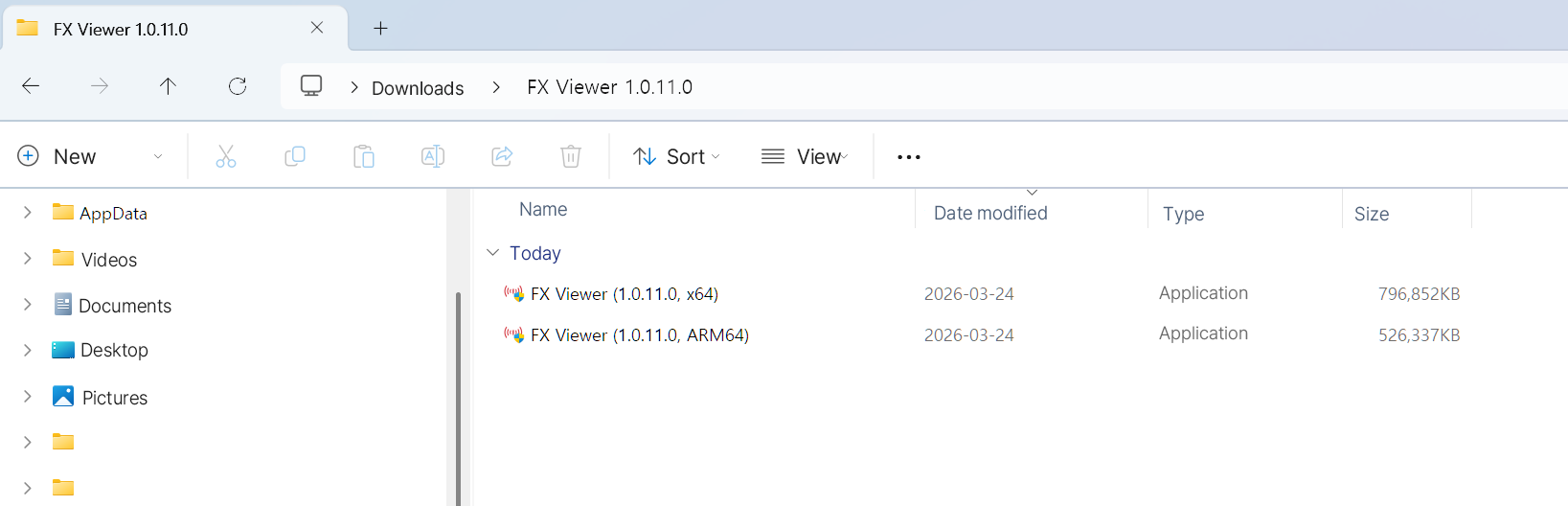
Upon completion of the installation, the installer will automatically close without any further notification. Once installed, FX Viewer can be viewed via the Windows search bar.
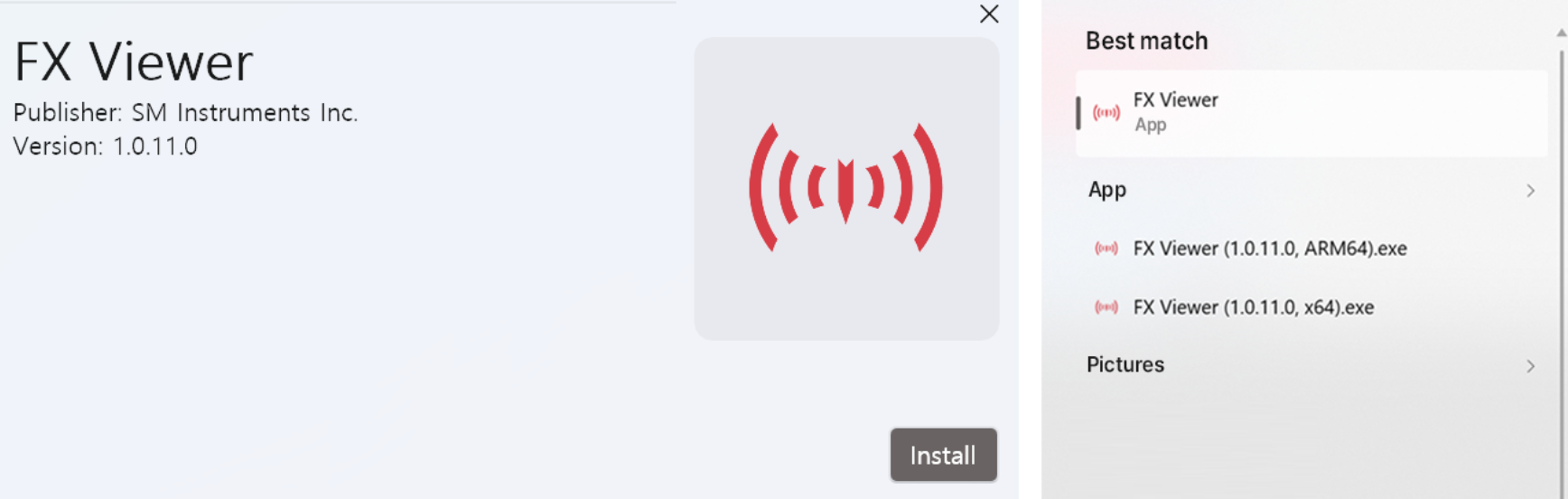
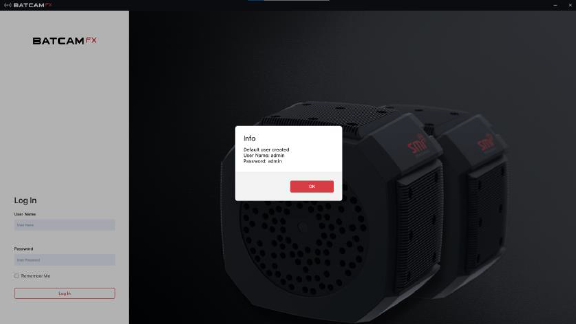
3. Account initialization
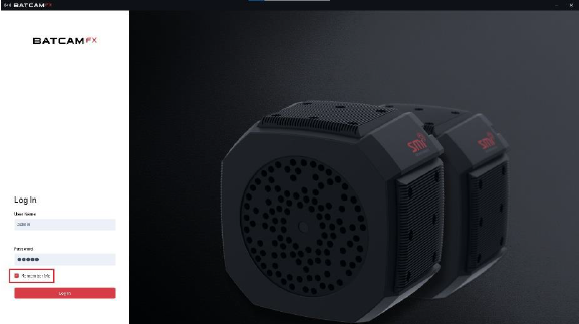
This is the screen when you first access FX Viewer. The initial User ID and Password are admin / admin.
4. After entering admin for ID and Password, you will be prompted to change the password as shown in the image. After changing the password and entering the changed password, you will be logged in.
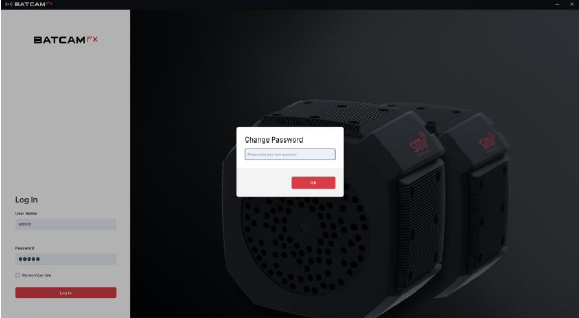
5. Additionally, if you check the "Remember Me" box under Password when logging in, you will remain logged in and the FX Viewer program will remember your account information and skip the login process the next time you run it.
6. The initial screen after a successful login (Home mode).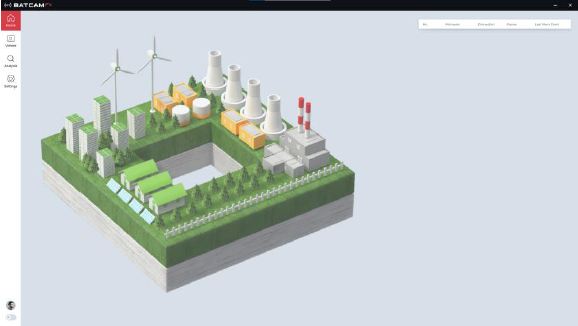
- By clicking the "Download Link" button, you can view and download the materials.
- All copyrights and rights to these materials are reserved by SM Instruments Inc.
- For further inquiries, please contact us at sales@smins.co.kr



Hello, this is SM Instruments.
First of all, we would like to sincerely thank all of you for purchasing the BATCAM FX Fixed Ultrasonic Camera.
We are pleased to announce the release of FX Viewer version 1.0.11.0 (updated on January 19, 2026), along with details of the changes and update instructions.
<New Features>
<Improvements>
< Minimum System Requirements for Running FX Viewer >
< How to Update FX Viewer >
⚠️ Please make sure to read the update instructions carefully before proceeding.
1. ↓ Click the button below to download the file.
< Download - NAS >

< Download - Google Drive >
2. Download the FX Viewer installation file from the webpage, unzip it, and run it.
Upon completion of the installation, the installer will automatically close without any further notification. Once installed, FX Viewer can be viewed via the Windows search bar.
3. Account initialization
This is the screen when you first access FX Viewer. The initial User ID and Password are admin / admin.
4. After entering admin for ID and Password, you will be prompted to change the password as shown in the image. After changing the password and entering the changed password, you will be logged in.
5. Additionally, if you check the "Remember Me" box under Password when logging in, you will remain logged in and the FX Viewer program will remember your account information and skip the login process the next time you run it.
6. The initial screen after a successful login (Home mode).